Expanding Accessibility Options in Call of Duty Using Cephable (Pilot Program)
Essential information for linking accounts and setting up Cephable to play Call of Duty
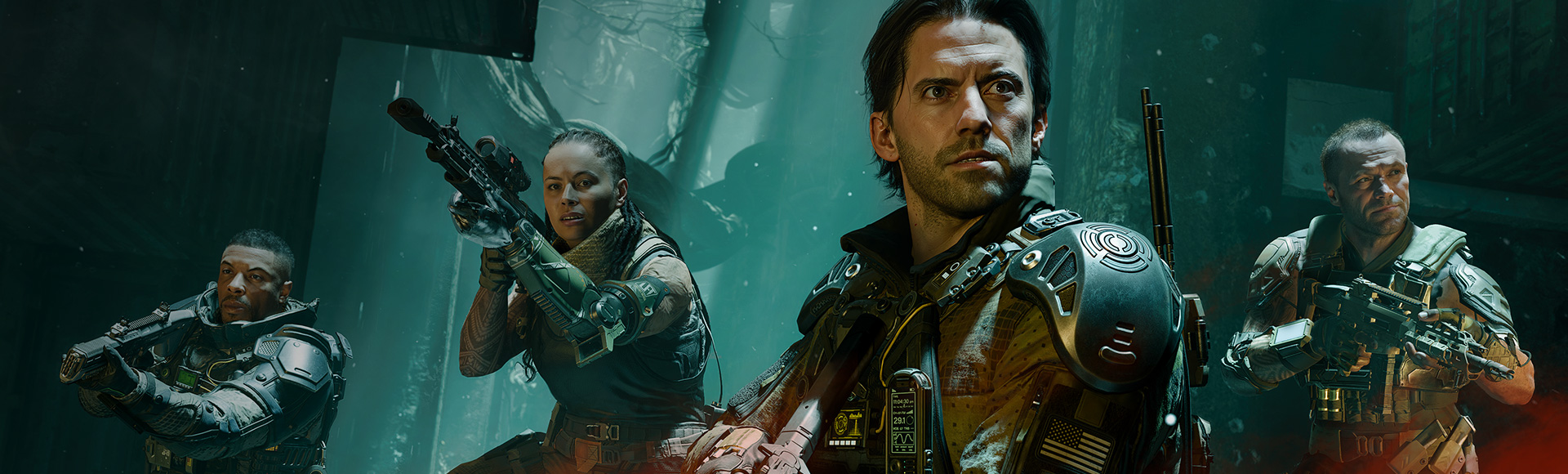
In an effort to expand accessibility options in Call of Duty®, a new pilot program using Cephable is being introduced in Call of Duty®: Black Ops 7. Using Cephable’s desktop or mobile app, players can navigate menus and play select Black Ops 7 game modes using alternative inputs such as voice commands, facial expressions, and gestures.
Cephable is available for use in Call of Duty: Black Ops 7 on PC and consoles.
Getting help
If you experience any issues with Call of Duty: Black Ops 7 gameplay or your Activision account, please reach out to Activision Support for help.
If you have an issue with your Cephable app or account, have feedback about Cephable, or would like to report a bug, please visit Cephable Support. You can also access these options directly within the Cephable app on the Dashboard (desktop) or Home screen (mobile device).
Please note: Cephable support for Call of Duty: Black Ops 7 is a pilot program. Details and features are subject to change.
1. How do I get access to Cephable to play Call of Duty?
To get started, download the Cephable app for your preferred device. If downloaded for desktop, find and install the app on your PC. From there, launch the app on your device and follow the in-app instructions to create a Cephable account, or log in if you already have an account.
Your Cephable account must be linked to your Activision account to use the app’s features in game. See more about account linking below.
2. How do I link my Cephable account to my Activision account?
Follow the steps below to link your accounts.
- Go to callofduty.com/cephable and log in to your Activision account.
- You can also begin the account linking process in game. Open the Settings menu and go to the Account & Network tab. Select Cephable Account, then use the QR code or select Link or Manage Account.
- Select the Account Linking tab.
- In the Connected Services section, select Link next to Cephable then select Continue.
- You will be redirected to the Cephable website. Create or log in to your Cephable account to complete the account linking process.
Please note: Be sure to reboot Call of Duty: Black Ops 7 if the game was running when you linked accounts.
Be sure to review Managing Your Activision Account for more help with account linking.
3. In which Call of Duty games and modes can I use Cephable?
To start the accessibility pilot program, Cephable is available to use in Call of Duty: Black Ops 7 Zombies mode and Co-Op Campaign.
4. How do I confirm Cephable is ready to use in Call of Duty: Black Ops 7?
Once you have Cephable installed and your accounts linked, launch the app and Call of Duty: Black Ops 7. If account linking was successful, you can confirm that a connection to Cephable was established in game.
- Open the Settings menu and go to the Account & Network tab.
- Select Cephable Account.
If connected to Cephable, the Cephable Account setting will show Ready To Use. If you do not see Ready To Use displayed, please relaunch the game and the app.
Make sure the Cephable app recognizes this connection as well.
On mobile
- On the Home tab, select View All Connections in the Connect & Extend section.
- If you do not see Active under Call of Duty: Black Ops 7, select it to set it to Active.
On desktop
- Open the dropdown menu on the upper right side of the Cephable app.
- Select Call of Duty: Black Ops 7.
If you do not see Call of Duty: Black Ops 7 connected to Cephable, please ensure your accounts are linked and then restart the game and the app.
If you’re still having trouble connecting, try relinking your Activision account to your Cephable account. Unlink your accounts on the Account Linking tab on callofduty.com/cephable. From there, restart the account linking process outlined in Question 2 above.
5. How do I use Cephable to play Call of Duty: Black Ops 7?
Check out this tutorial video for details about how to get started using Cephable controls in Call of Duty: Black Ops 7.
It is recommended that you begin using Cephable in Call of Duty: Black Ops 7 by visiting the Zombies Firing Range. This will allow you to practice the basics of moving and shooting without enemy interference.
To access the Zombies Firing Range, launch Zombies mode, select the Weapons tab, then select Firing Range.
Using Voice Commands
Select Start Microphone in the Cephable app to allow it to hear your voice commands.
Try using voice commands such as “Go,” “Stop,” “Aim,” and “Fire” to see them control the game. See more about voice commands you can use in Question 6 below.
Using Quick Action Buttons
Select Quick Action Buttons in the Cephable app to access the out-of-the-box button controls you can use in game.
Using Camera Controls
Before accessing Camera Controls, ensure that the camera on your device is ready to use.
Select Start Camera to begin using Camera Controls, which allows Cephable to map your head movements and facial expressions to game actions.
When you’re comfortable with the controls, move on to the Zombies Training Course, where you can experience various gameplay elements and get more accustomed to your preferred input options. You can access the Training Course through the main menu while in Zombies.
You may also choose to experiment with control customizations to further enhance your gameplay experience. See more about customizing controls in Question 6 below.
Once you’ve completed the Training Course, you’re ready to play. Navigate to the Play tab and choose Select Match to play Zombies, or back out to the main menu to start playing Campaign.
Check out these tutorial videos showing how to use Cephable controls in Call of Duty: Black Ops 7:
Note that you can use more than one of these input options and more than one device to customize and personalize your control option. For example, you can use your desktop’s camera for Camera Controls while also using Quick Action Buttons on a mobile device. You can also continue using physical input, such as an adaptive controller or keyboard and mouse alongside Cephable.
6. What are the controls I can use in Call of Duty: Black Ops 7?
Here are the out-of-the-box controls you can use with Cephable in Call of Duty: Black Ops 7.
Note that you can customize out-of-the-box controls or create new ones by selecting Edit Call of Duty: Black Ops 7 Controls in the Cephable app.
If you wish to restore your customized controls to their default settings, follow these steps:
- Select Edit App Controls under your customized Call of Duty: Black Ops 7 controls.
- Rename your customized controls, or select Options and then Delete App Controls.
- Go to Cephable to copy Call of Duty: Black Ops 7 controls.
- When the controls appear in the Cephable app, select Customize App Controls, then select Save and Finish.
| MOVEMENT | |
|---|---|
|
Jump / Stand / Mantle |
Jump over or climb onto obstacles, or stand up from a crouched position |
|
Slide |
Slide along the ground while sprinting |
|
Dive |
Dive to the ground to quickly go prone |
|
Sprint |
Run faster than your normal walking speed |
|
Tac Sprint |
Perform a full-speed tactical sprint for maximum movement velocity |
|
Crouch |
Lower your stance to reduce profile and move quietly |
|
Prone |
Lie flat on the ground for the lowest possible profile |
|
Weapon Mount |
Mount your weapon on a surface for stabilized aiming |
|
Move Forward |
Move your character forward |
|
Move Backward |
Move your character backward |
|
Move Left |
Strafe your character to the left |
|
Move Right |
Strafe your character to the right |
|
Wall Jump |
Executes a wall jump if you are near a wall |
|
Stop |
Cancels all commands |
| CAMERA | |
|
Look Up |
Pan the camera upward |
|
Look Down |
Pan the camera downward |
|
Look Left |
Pan the camera to the left |
|
Look Right |
Pan the camera to the right |
| COMBAT | |
|
Interact |
Interact with objects or players in the world |
|
Reload |
Reload your currently equipped weapon |
|
Switch Weapon |
Swap to your next available weapon |
|
Armor Plate |
Apply an armor plate to restore or add protection |
|
Shoot |
Continuously Fire your currently equipped weapon |
|
Fire |
Fire a single shot from your currently equipped weapon |
|
Toggle Aim Down Sights |
Aim down your weapon's sights for more precise shooting |
|
Lethal |
Throw a lethal piece of equipment such as a grenade |
|
Tactical |
Use a tactical piece of equipment such as a stun or flash grenade |
|
Focus |
Hold your breath to steady your aim, useful for sniping |
|
Melee |
Perform a close-range melee attack |
|
Body Shield |
Use a downed enemy as a body shield for protection |
|
Fire Mode |
Switch between available firing modes on your weapon |
|
Field Upgrade |
Activate your equipped field upgrade ability |
|
Give Up |
Bleed out and forfeit your revival instead of waiting for a teammate |
|
Self Revive |
Use a self revive when you are downed |
|
Scorestreak 1 |
Activate your first equipped scorestreak reward |
|
Scorestreak 2 |
Activate your second equipped scorestreak reward |
|
Scorestreak 3 |
Activate your third equipped scorestreak reward |
|
Use last streak |
Re-activate the most recently used scorestreak |
|
GobbleGum 1-3 |
Activate one of your equipped GobbleGums |
| COMMUNICATION AND PINGS | |
|
Ping Location |
Mark a location of interest on the map for your teammates |
|
Ping Danger |
Mark a danger or enemy position to alert your teammates |
|
Ping Wheel |
Open the ping wheel to select from a variety of communication pings |
|
Delete Pings |
Remove all of your active ping markers from the map |
|
Chat |
Open the text chat interface |
|
Emote 1-3 |
Perform one of your equipped emotes |
|
Spray 1-3 |
Apply one of your equipped sprays to a surface |
|
Weapon Inpect |
Inpect your equipped weapon |
| USER INTERFACE | |
|
Map |
Open the in-game map |
|
Stats |
View your in-game stats and performance |
|
Mission |
View current mission objectives |
|
Social Menu |
Open the social menu to manage friends and party |
|
Launcher Menu |
Open the game launcher menu |
|
Settings |
Open the settings menu |
|
Loadout Menu |
Open the loadout menu to switch or modify your loadout |
|
Switch Third Person |
Toggle between first-person and third-person camera views |
|
Enter Prestige |
Enter Prestige once you reach max level |
| VEHICLES | |
|
Next Seat |
Cycle to the next available seat in your vehicle |
|
Jump Out |
Exit your current vehicle |
|
Auto Drive Fly Toggle |
Toggle automatic driving or flying mode for your vehicle |
| CONTROLLER INPUT | |
|
A |
Presses the A button |
|
B |
Presses the B button |
|
X |
Presses the X button |
|
Y |
Presses the Y button |
|
D-Pad down |
Presses the D-Pad down |
|
D-Pad left |
Presses the D-Pad left |
|
D-Pad right |
Presses the D-Pad right |
|
D-Pad up |
Presses the D-Pad up |
|
Left Bumper |
Presses the Left Bumper button |
|
Right Bumper |
Presses the Right Bumper button |
|
Left Trigger |
Presses the Left Trigger |
|
Right Trigger |
Presses the Right Trigger |
|
Click Left Thumbstick |
Clicks the Left Thumbstick |
|
Click Right Thumbstick |
Clicks the Right Thumbstick |
|
Right Thumbstick Down |
Moves the Right Thumbstick down |
|
Right Thumbstick Left |
Moves the Right Thumbstick left |
|
Right Thumbstick Right |
Moves the Right Thumbstick right |
|
Right Thumbstick Up |
Moves the Right Thumbstick up |
|
Menu Button (start) |
Presses the Menu button (aka the start button) |
|
View Button (select) |
Presses the View button (aka the select button) |
7. What should I do if Cephable is not detecting my control inputs in Call of Duty: Black Ops 7?
If the Cephable app is not detecting or responding to your inputs, such as voice commands, head movements, or facial expressions, please reach out to Cephable Support.
8. I’m having trouble connecting my Cephable app to Call of Duty: Black Ops 7. What should I do?
If Call of Duty: Black Ops 7 is not connecting to Cephable, please ensure your accounts are linked and then restart the game and the app.
If your accounts are linked and you’re still having trouble connecting, please reach out to Cephable Support.
9. Is Cephable an approved input application in line with the Call of Duty Security and Enforcement Policy?
Yes, Cephable is an approved and supported application for use in Call of Duty: Black Ops 7. The integration includes safeguards to protect fair play and was implemented and tested in collaboration with Treyarch, Beenox, and the RICOCHET Anti-Cheat™ team in preparation for potential future expansion to other modes.
Please note, however, that the use of Cephable may be restricted if suspicious behavior is detected. Please review the Call of Duty Security and Enforcement Policy for more information.